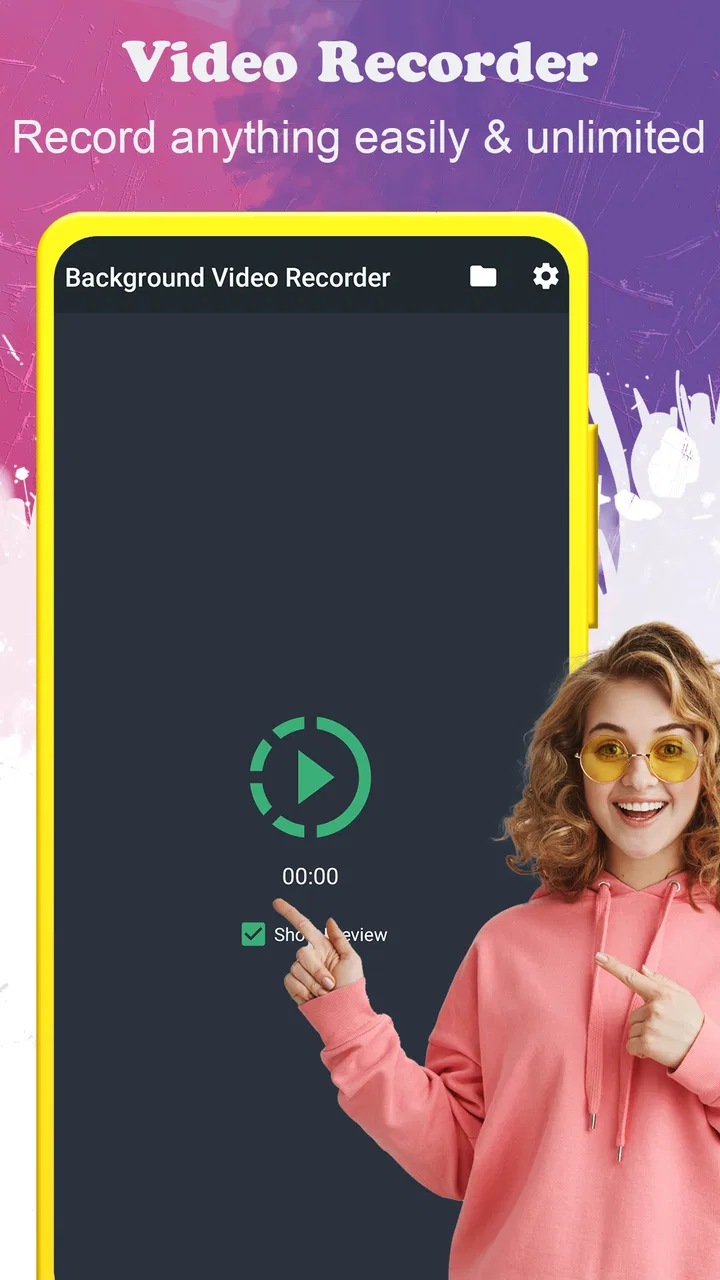
Background video recorder
- 4.1
- Rating
- 10.00M
- Installs
- Free
- Price

 Analysis by App-foxy
I approached Background video recorder as a practical camera utility rather than a full video-editing suite. Its purpose is straightforward: it lets me record video while the camera view is kept out of the way, which can be useful when I need to capture something without keeping the preview open on the screen. That simple idea is also where most of the real-world questions begin. A background recorder has to fit around Android’s battery controls, screen behavior, storage space, and permissions, so the quality of the experience depends on more than pressing a record button.
The app sits in the Video Players & Editors category, although I would think of it primarily as a recording tool. It is free to install, rated for Everyone, and comes from the developer lock screen passcode. Its store summary describes a camera that records in the background, while the short description reduces the concept to “Background video.” After using it, I think that description is accurate but incomplete: the useful part is not a long list of creative tools, but the ability to make recording less visually intrusive.
Where the experience usually gets stuck
The first point of friction is understanding what “background” means in daily use. I would not treat it as a promise that the phone can record through every situation without interruption. In practice, the operating system still controls the camera, battery use, storage access, and app activity. If the phone aggressively restricts an app that is running out of sight, a recording may stop or fail to begin. That is not necessarily a fault in the recorder itself; it is a reminder that background camera work is more sensitive than ordinary foreground recording.
You May Also Like

 Blood Strike: 2.5 Anniversary
Blood Strike’s Loadouts Turn Every Drop Into a Tactical Gamble
A close look at Blood Strike’s custom loadouts: how fast access to signature weapons reshapes its battle royale rhythm, rewards preparation, and narrows the gap between fights.

 Pandora - Music & Podcasts
Pandora’s Music Is Easy to Start, but Harder to Recover
Pandora’s strength is its low-effort path from a seed to a station. Its weak spot is how much confidence it asks you to place in connection, setup, and quiet recovery.

 8 Ball Pool
 Is Built on Rivalries, Rematches, and Routine
A close look at the rivalries, rematches, shared routines, and unanswered safety questions that turn a quick pool match into a persistent mobile community.

 Samsung Music
’s Quiet Strength Is Playing What You Already Own
Its reach comes less from spectacle than from dependable access to a personal library. That simplicity is both the app’s strongest retention engine and its ceiling.

 AccuWeather: Weather Radar
AccuWeather Review: A Quick, Clear Forecast for Everyday Decisions
For everyday plans, the best forecast is the one you can understand quickly. AccuWeather makes rain timing, radar, and local conditions easy to act on, with a few trade-offs.

 Hill Climb Racing
Why Hill Climb Racing Still Turns Crashes Into One More Run
A tiny car, a bumpy hill and one more upgrade: Hill Climb Racing keeps resurfacing because its simple chaos makes every near-miss feel personal.
More From Our News Desk



Another common stumbling block is starting a recording and then assuming the job is finished. With a normal camera app, I can usually see the preview and immediately notice whether the lens is covered, whether the scene is too dark, or whether the phone is pointed in the wrong direction. A background recorder removes that visual reassurance. I therefore recommend a short test before any important use. Record for a few moments, stop it, and check the saved result. This small habit catches more problems than repeatedly changing settings without checking the actual file.
There is also a practical difference between discreet recording and invisible recording. The app can make the camera view less prominent, but the phone itself still has physical limits. A covered lens produces a dark result, movement can make footage unusable, and a phone placed in a pocket or bag may capture noise or blocked images rather than useful video. I see the app as a way to reduce screen distraction, not as a substitute for thoughtful camera placement.
Storage is another easy detail to overlook. Video files can become large, especially when a user leaves a recording running longer than planned. Before trying a lengthy session, I check available space and remove unnecessary old clips. I also make sure the phone is not already busy with downloads or other camera-related tasks. The app is free, but the broader recording workflow still consumes phone resources.
Some users may also expect editing tools because the app belongs to a category that includes video editors. That expectation would be misplaced. My experience is better framed around capture first and any later trimming or sharing elsewhere. If your main goal is adding music, captions, transitions, or filters, a conventional editor will be a better match. This recorder is useful earlier in the process, when the priority is obtaining footage without keeping a camera preview in front of you.
What I check before trusting a recording
I begin with the basics: the lens is clear, the phone is stable, the intended camera is selected if the app offers a choice, and there is enough storage for the session. I then make a short clip and play it back with sound. Checking audio matters because a picture can look fine while the recording captures little useful sound, particularly if the phone is placed behind an object or inside a container.
I also test the exact screen behavior I plan to use. If I want to leave the app and continue another task, I try that during the short test rather than assuming it will behave identically on every phone. Android versions and manufacturer interfaces handle background activity differently. A setup that works smoothly on one device may need extra attention on another, especially when battery-saving tools are active.
The app’s current version is 7.1.6, and it requires Android 6.0 or later. That makes it accessible to a broad range of devices, but compatibility on paper does not guarantee identical behavior across modern phones. Older hardware may struggle more with heat, battery drain, or storage speed, while newer phones may apply stricter background limits. I judge the result by the completed file, not merely by whether the recording screen appeared to start.
Setup checks that prevent most failed clips
My preferred setup is deliberately boring. I place the phone where the lens has a clear view, connect power when a long session is expected, and avoid starting with a nearly empty battery. I keep the phone steady and leave enough room around it for heat to escape. A background recorder can make the screen less demanding to watch, but the camera and processor are still doing work underneath.
Permissions deserve a careful look during the first launch. If the app cannot access the camera, microphone, or storage location needed by the phone, recording may not work as expected. I read each system prompt instead of dismissing it quickly. If I previously denied access, I revisit the app’s settings in Android and check the relevant permissions there. This is safer and more useful than repeatedly reinstalling the app.
Battery optimization is a particularly important check for this type of utility. Some phones place unused apps into a restricted state, and that can interfere with anything intended to continue while it is not the main screen. I look through the phone’s battery settings for restrictions affecting the recorder and test again after making a change. I do not disable every battery safeguard blindly; I change only what is necessary, because unrestricted background activity can reduce battery life.
Notifications and system indicators can also affect expectations. Android may show its own indication that a camera or microphone is active. That is part of the phone’s operating-system behavior, not something I would try to work around. A legitimate recording workflow should respect those indicators and the people around the camera. I use this app only where recording is lawful and appropriate, with clear consideration for privacy and consent.
For an everyday example, imagine I want to record a small repair on my desk so I can review the steps later. I would mount or lean the phone securely, frame the work area during a visible test, start a brief clip, and confirm that both the hands and the sound of the repair are captured. Only then would I begin the longer session. The background mode is helpful because I can avoid keeping a bright preview open while working, but the test remains essential because a slight change in angle can ruin the entire recording.
Another useful workflow is documenting a process that requires interaction with the phone itself. I might need to leave the recorder out of the way while checking notes or following instructions. Here, the value is convenience rather than secrecy: the camera can continue its job while the display is less distracting. If the process involves sensitive information, I would avoid recording it or carefully control what enters the frame.
How I recover when a recording does not appear
When a clip is missing, I work through the simplest possibilities first. I check the app’s own recording list or the phone’s video folders, then sort by the most recent files. I confirm that the session actually reached its stop action rather than being interrupted by a battery shutdown, accidental gesture, or system restart. I also look at storage space, because a phone with little free capacity may not complete a file cleanly.
If a clip exists but will not play, I try opening it with another video player already installed on the phone. That helps separate a playback issue from a recording issue. A file that plays elsewhere may simply be incompatible with the first player. If no player can open it, I would not assume that changing random camera settings will recover it; I would first repeat a short test and see whether new recordings are created correctly.
For recordings that stop early, I compare the timing with the phone’s battery state and temperature. Long camera sessions can be demanding, and a warm phone may protect itself by limiting activity or shutting down. I move the device away from direct heat, remove unnecessary apps from active use, and test again with a shorter session. If the shorter clip works but the longer one fails, the limitation may be the device’s endurance rather than the app’s basic operation.
A useful recovery habit is to change one thing at a time. I might first check storage, then permissions, then battery restrictions, testing after each step. Changing everything at once makes it impossible to know what solved the problem and may create new inconvenience. I keep the troubleshooting general because Android menus differ by manufacturer, but the principle remains consistent: verify the file, the system conditions, and the phone’s physical state.
The app includes in-app purchases ranging from $1.49 to $49.99 per item. Since the core download is free, I would use the free experience long enough to understand whether it fits my phone and workflow before considering any optional purchase. I would not pay simply to compensate for a setup problem caused by storage, permissions, or battery controls. First make sure the basic recording path works; only then decide whether an upgrade is worthwhile for your needs.
When the app is not the cause
It is tempting to blame the recorder whenever a video looks poor, but the camera environment often matters more. A dirty lens creates haze, low light creates noise, and a moving phone creates blur. Background operation can make these issues harder to notice because I am not watching the preview continuously. I therefore treat lighting and stability as part of the setup, not as details to fix after the recording fails.
Audio problems can come from distance, wind, clothing, or the phone’s physical position. If the video is intended to explain a task, I place the phone close enough to hear the important actions without blocking the view. For a quiet scene, I perform an audio test with the phone in its final position. If high-quality sound is the central requirement, a dedicated camera or audio setup may be more appropriate than a background recorder.
Privacy is another area where the app should not be treated as a technical solution. Making the preview less visible does not remove the responsibility to record people appropriately. I would never use it to capture private conversations, restricted spaces, or anyone who has not agreed to be recorded. The safest use cases are those where I control the environment and have a clear reason for creating the footage.
The usual camera app is better when I need immediate framing, fast access to exposure controls, or confidence that I can see the scene at all times. A full video editor is better after capture, when the job is to cut clips and prepare a finished presentation. Background video recorder occupies a narrower space between them: it is convenient when the recording itself should be less intrusive, but it is not the strongest choice for careful cinematography or post-production.
I also would not choose it as my first option for critical evidence, professional production, or a long unattended session unless I had tested the exact phone, storage situation, and power arrangement beforehand. A dedicated camera can offer more reliable controls and endurance. The app is most convincing for short, practical recordings where convenience matters and I can verify the result quickly.
My practical verdict after using it
Background video recorder is a focused free app for people who want to capture video without keeping a camera preview at the center of the screen. Its appeal is easy to understand, and the large user base—over ten million installs, with an average rating of 4.1 from around 198 thousand ratings—suggests that the idea has broad appeal. I would still judge it by the way it behaves on a particular phone, because background activity is shaped heavily by Android’s battery and permission systems.
What I like most is the change in workflow. I can set up a scene, begin a short verification clip, and then carry on with another task without constantly watching a conventional camera interface. That is useful for documenting repairs, demonstrations, desk work, or other processes where the phone needs to record but should not dominate the activity. The strongest tip I can offer is to make the test clip part of the routine, not an optional extra.
The trade-off is reduced visibility. Because the app’s purpose is to keep recording out of the foreground, I lose some of the reassurance that comes from seeing the live image. I must be more deliberate about framing, sound, storage, heat, and battery controls. Users who want polished video controls, immediate composition feedback, or serious editing should choose a conventional camera and editor instead.
For someone who wants a simple background recording workflow and is willing to perform a few setup checks, I think this app is worth trying because it is free and supports Android 6.0 or later. For someone expecting a complete production studio, guaranteed unattended recording, or a way to avoid the phone’s privacy and system indicators, it is the wrong tool. My recommendation is conditional but positive: install it, test a short clip in the exact situation you care about, and keep it if that quieter recording workflow solves a real problem for you.
The best results come from treating it as a practical capture tool, not a magic replacement for a camera, recorder, or editor. That distinction makes its strengths clearer and its limitations easier to manage.
FAQs for Background video recorder
01What features does the Background Video Recorder offer?
The Background Video Recorder allows users to record videos discreetly in the background while using other apps or with the screen off. Key features include scheduled recordings, one-touch recording, and customizable video quality settings. It also offers storage management to prevent your device from running out of space.
02Is the Background Video Recorder legal to use?
The legality of using a background video recorder varies based on local laws regarding privacy and consent. It is crucial to ensure you are complying with local regulations and have the necessary permissions when recording. Always respect privacy rights and seek consent if required.
03How does the Background Video Recorder handle storage and battery usage?
The app is designed to manage storage efficiently by allowing users to set limits on video length and quality. It also supports automatic file deletion to free up space. While recording in the background, it optimizes battery usage, but extended recording sessions can still drain the battery significantly.
04Can I customize the video settings in the Background Video Recorder?
Yes, the app offers a range of customization options for video settings. Users can adjust video resolution, frame rate, and bitrate to balance quality with storage usage. These settings allow users to tailor the recording experience to their specific needs and device capabilities.
05What are the privacy and security features of the Background Video Recorder?
The Background Video Recorder includes several privacy and security features. Users can set a PIN or use biometric authentication to access the app, ensuring recorded content is protected. Additionally, the app does not share data with third parties, maintaining user privacy by keeping recordings confidential.
Pros
- Records discreetly in the background.
- Easy to use with intuitive interface.
- Supports high-quality video output.
- Offers scheduling for automatic recording.
- Consumes minimal battery while recording.
Cons
- Limited editing features available.
- May not support all file formats.
- Some features require in-app purchases.
- Can use substantial storage space.
- Occasional lag on older devices.

Background video recorder
Gallery